
How to convert MOV to MP4
MOV is Apple's video format. It plays fine on a Mac and iPhone, but some Windows apps, Android phones, websites and editors refuse it. Converting it to MP4 makes a file that plays almost everywhere. Fileshaper does it in one click, on your own computer, with no upload and no watermark.
Updated 13 November 2026 · Hollowbit Studio
Do it right here
Step by step
- Download FileshaperInstall the free app for Windows or Mac from the download page.
- Drop your MOV files on the windowiPhone videos, screen recordings and QuickTime exports all work. You can add several at once.
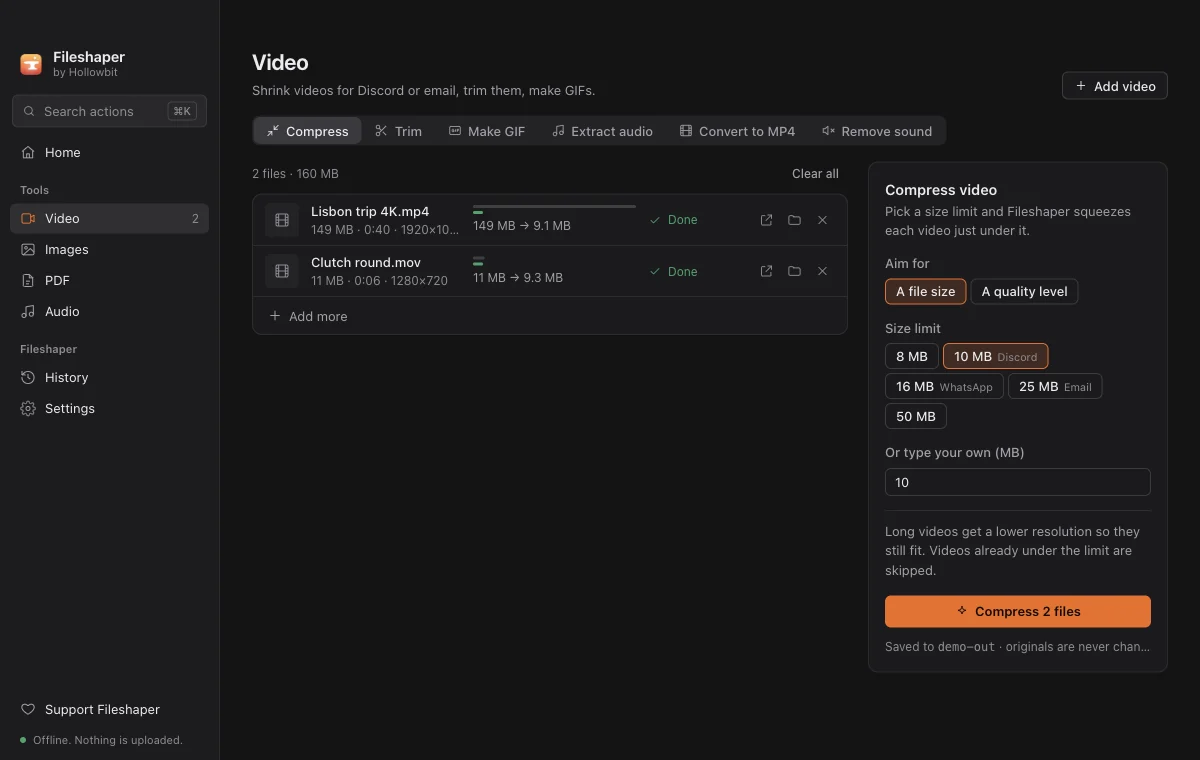
- Choose Convert to MP4Under Video, pick Convert to MP4.
- Click ConvertThe MP4 is saved next to the original, which is left untouched.
Why MOV files sometimes won't play
MOV is a container made by Apple. Windows Media Player, many Android phones, some upload forms and older editors only accept MP4. Newer iPhones also record in HEVC, which some devices can't decode at all. An MP4 with H.264 video is the safest format to share.
Does converting lose quality?
Re-encoding always changes the video slightly, but at normal settings you won't see the difference. If you also need the file smaller, use Compress instead and pick a size such as 25 MB.
Other ways to do it
On a Mac, QuickTime Player's File, Export As makes a MOV, not an MP4. VLC and HandBrake are free and can convert, with many more settings to work through. Online converters work too, but they upload your video to someone else's server and often limit file size.
Questions
Is MP4 better than MOV?
Not better, just more widely supported. For sharing and uploading, MP4 is the safer choice.
Can I convert several MOV files at once?
Yes. Drop them all on Fileshaper together and convert them in one go.
Does Fileshaper upload my video?
No. Everything happens on your computer. Fileshaper never uploads your files.
More guides
- How to compress a video for DiscordShrink any video to fit Discord's 10 MB upload limit without Nitro and without uploading it to a website. Free, offline, works on Windows and Mac.
- How to open HEIC photos on Windows (and convert them to JPG)iPhone photos are saved as HEIC, which many Windows apps can't open. Convert HEIC to JPG in bulk, free and offline, without uploading your photos.
- How to sign a PDF without uploading itAdd a drawn or typed signature and the date to any PDF without sending your contract to a website. Free and offline on Windows and Mac.