 Diskshaper
How to delete CrossOver bottles you no longer need
Every CrossOver bottle is a small Windows install, about 300 MB empty and often several gigabytes once runtimes are added. Bottles stay after you delete the game inside. In CrossOver, select the bottle and choose Delete Bottle. Diskshaper finds bottles with no game left inside and lists them as Safe.
Updated 11 November 2026 · Hollowbit Studio
Step by step
- Quit CrossOverSo no bottle is in use.
- Download Diskshaper and press Scan this MacIt reads ~/Library/Application Support/CrossOver/Bottles.
- Open GamingEmpty CrossOver bottles shows bottles with only Windows and runtimes inside. CrossOver bottles shows the rest, with the games each one holds.
- Move empty bottles to the TrashIf you change your mind, put the bottle back from the Trash and CrossOver finds it again.
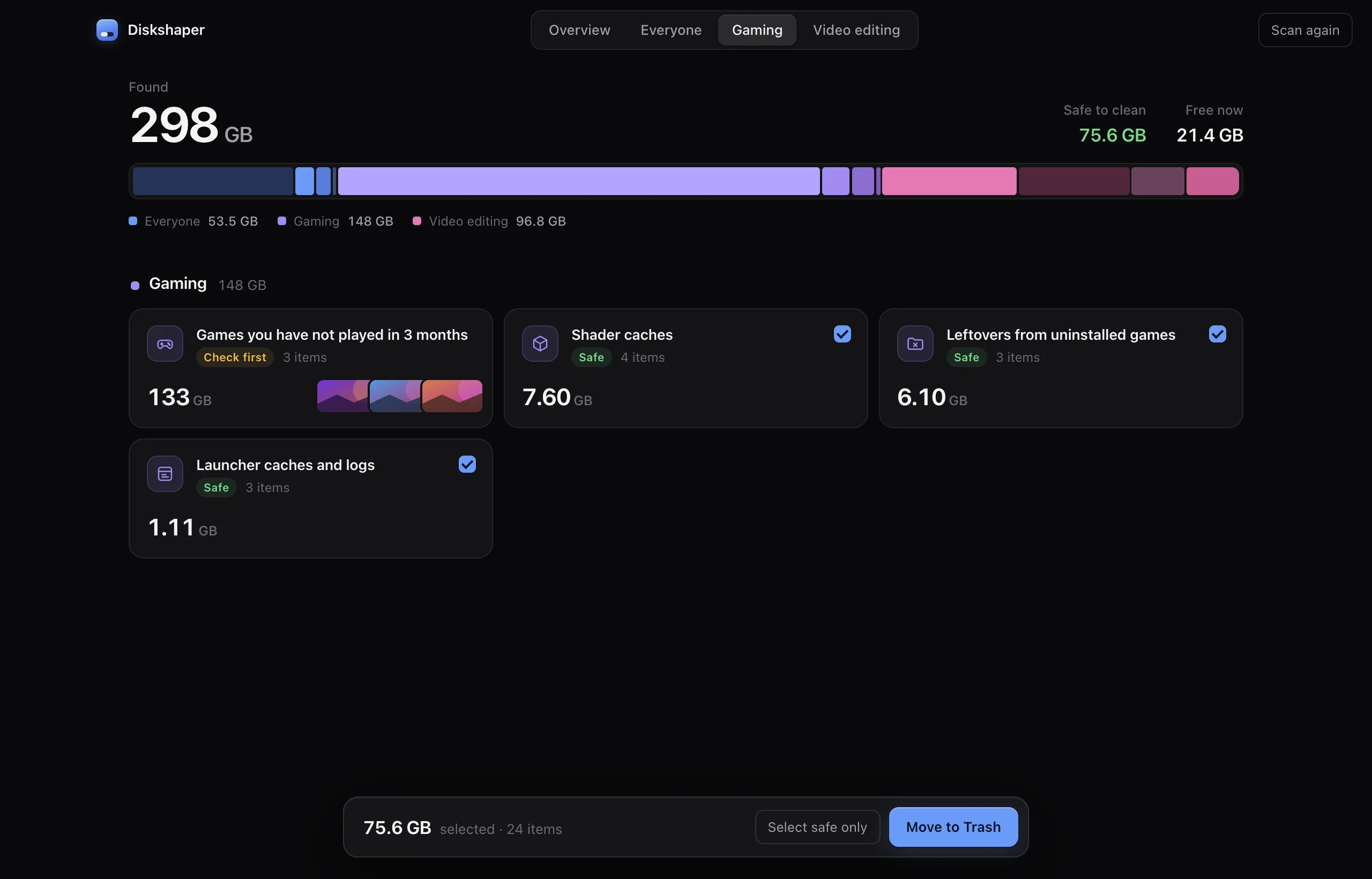
How Diskshaper knows a bottle is empty
It looks inside each bottle’s Program Files folders and its Steam library. If there is nothing but Windows components and runtimes like .NET, DirectX or Edge WebView2, no game is left.
The manual way
Open CrossOver, select a bottle in the sidebar, and use Bottle, Delete Bottle (or right-click it). You can see each bottle’s files by right-clicking it and choosing Open C: Drive.
Saves inside bottles
Windows games often save to the bottle’s users folder. Before deleting a bottle with a game you might play again, copy drive_c/users somewhere safe.
Questions
How much space does an empty bottle use?
About 300 MB for a fresh bottle, and more once .NET or other runtimes were installed. Five empty bottles can easily take 3 GB.
Will deleting a bottle remove CrossOver?
No. Only that bottle. CrossOver and your other bottles stay.
Does this work for Whisky or Wine?
Diskshaper reads CrossOver bottles today. Other Wine setups may come later.
More guides
- How to clear your shader cacheShader caches from Steam, NVIDIA, AMD and DirectX can take tens of gigabytes. Here is where they live, whether it is safe to clear them, and how.
- How to remove Steam leftovers after uninstalling a gameUninstalled a Steam game but the space did not come back? Steam often leaves the game folder behind. Here is how to find leftovers safely.
- How to clear the Premiere Pro media cachePremiere Pro’s media cache can grow to tens of gigabytes. Where the cache files are on Mac and Windows, whether it is safe to delete them, and how.
- How to clear the DaVinci Resolve cacheDaVinci Resolve’s render cache, optimized media and proxies can fill a drive. Where they are, what is safe to delete, and how.