 Diskshaper
What is taking up space on my Mac?
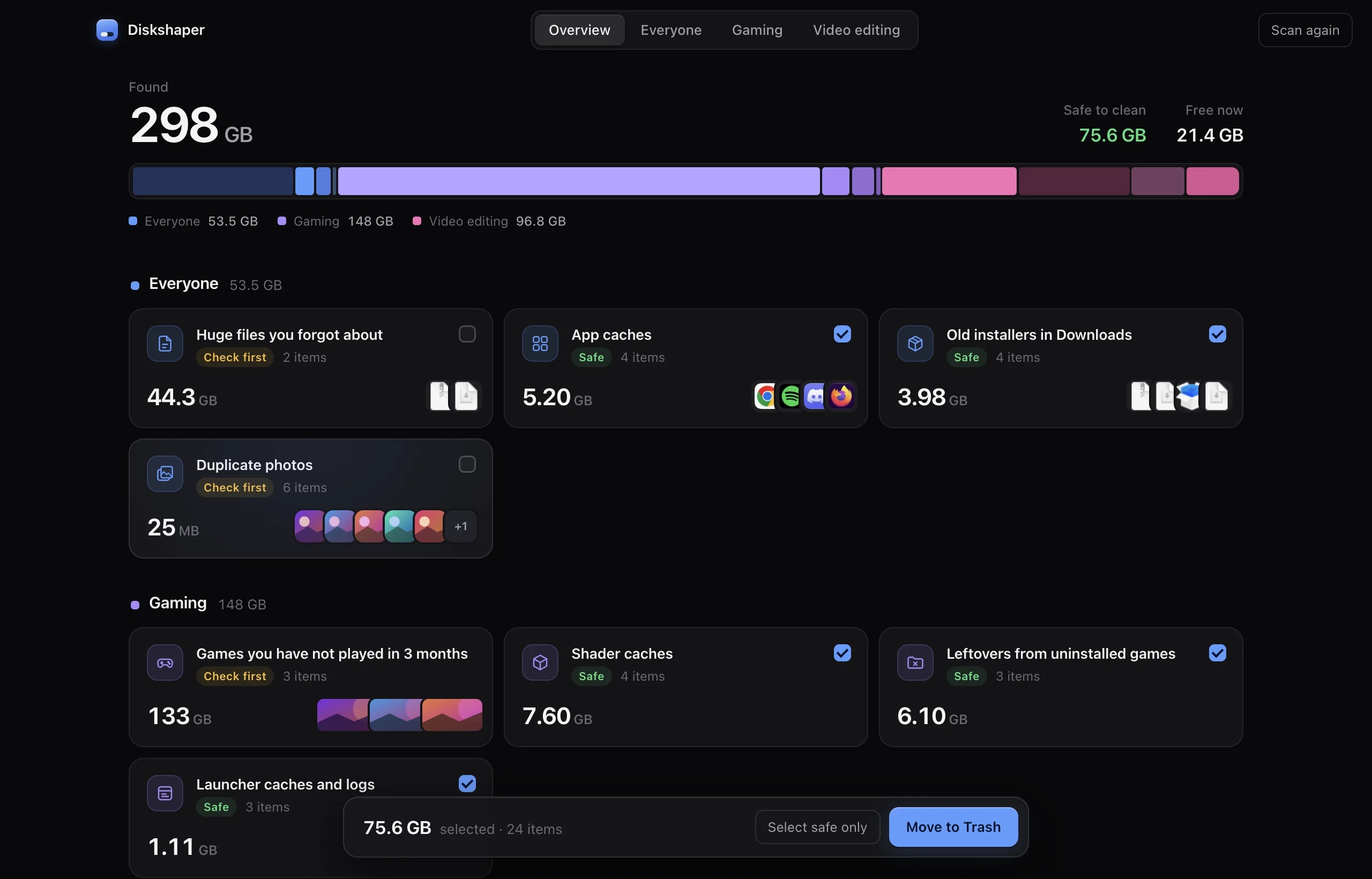
On most Macs the big items are apps and games, video, old iPhone backups, caches and downloads you forgot about. System Settings, General, Storage shows rough totals but not what you can safely remove. Diskshaper scans your Mac in a few seconds, shows what is taking space in plain groups, and marks what is safe to clean.
Updated 11 November 2026 · Hollowbit Studio
Step by step
- Download Diskshaper for MacFree, for Apple Silicon and Intel Macs.
- Press Scan this MacAllow access to Desktop, Documents and Downloads when macOS asks, so it can look for big files there.
- Look at the storage barEach colour is a group. Hover a segment to see what it is.
- Clean what is Safe, check the restSafe items are ticked for you. Everything goes to the Trash.
What “System Data” is
System Data in macOS’s storage view mixes caches, logs, local Time Machine snapshots, virtual machine and CrossOver bottles, and app support files. Part of it is the cache Diskshaper finds; part is macOS itself, which you should leave alone.
The manual way
System Settings, General, Storage lists Applications, Documents, iOS files and more, with recommendations like emptying the Trash automatically. In Finder, sort Downloads by size, and check ~/Library/Caches for big folders from apps you use.
Things to keep
Do not delete anything inside /System or /Library you do not recognise, and do not edit inside the Photos library. Diskshaper never looks there.
Questions
Is it safe to delete files in ~/Library/Caches?
Mostly, yes: apps rebuild them. Close an app first. Diskshaper separates normal app caches from developer tool downloads, which are big to download again.
Why is my Mac still full after deleting?
Deleted files stay in the Trash until you empty it. Local Time Machine snapshots can also hold space for a while; macOS frees them when it needs room.
How much space should I keep free?
At least 10 to 15% of the drive, so macOS has room for updates and virtual memory.
More guides
- How to clear your shader cacheShader caches from Steam, NVIDIA, AMD and DirectX can take tens of gigabytes. Here is where they live, whether it is safe to clear them, and how.
- How to remove Steam leftovers after uninstalling a gameUninstalled a Steam game but the space did not come back? Steam often leaves the game folder behind. Here is how to find leftovers safely.
- How to clear the Premiere Pro media cachePremiere Pro’s media cache can grow to tens of gigabytes. Where the cache files are on Mac and Windows, whether it is safe to delete them, and how.
- How to clear the DaVinci Resolve cacheDaVinci Resolve’s render cache, optimized media and proxies can fill a drive. Where they are, what is safe to delete, and how.